
Board templates — start a comparison without starting from scratch
Kortlist boards now have templates. Pick a starter shape when you create a board, or save any board you've already tuned as a reusable template for next time.
The first thirty seconds of a new comparison are always the same chore. You know you want to compare cars, or vacuum cleaners, or flats — and before you can paste a single URL you have to type out the columns you’ll need. Price. Range. Year. Make. Model. The same columns you typed out the last time you compared cars, and the time before that.
Boards now have templates. Pick a starter shape when you create a board, and Kortlist drops you straight into a board that already knows what it’s comparing.
What it looks like
Hit New board and the dialog has changed. Instead of an empty form, you get a picker:
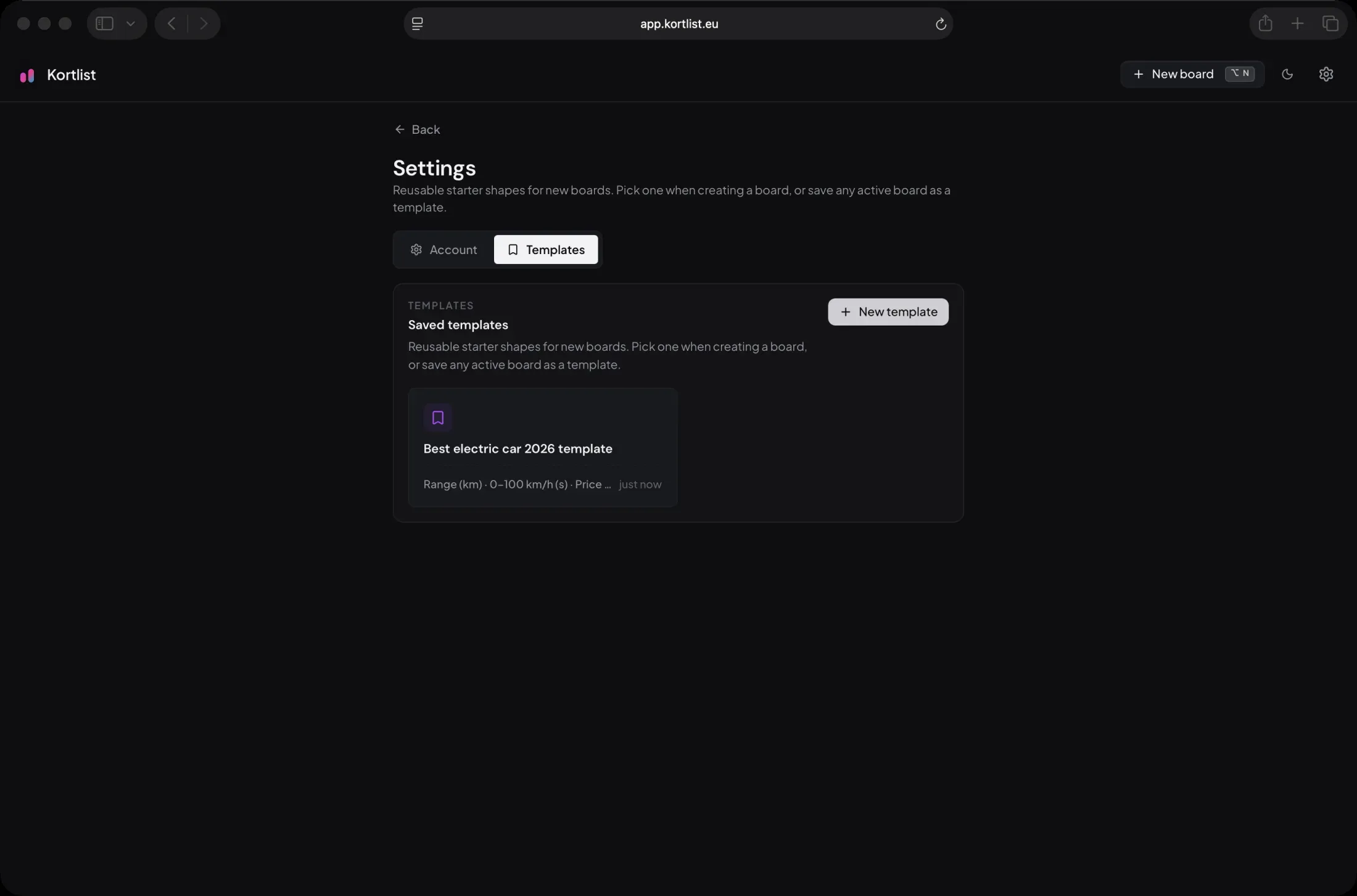
Blank board is still there as the first option — name and price, nothing else, the way new boards have always worked. Below it sit your templates: a short summary of the parameters each one carries, and a count of how many more are tucked behind the +N. Click one, hit Continue, and you’re on a board with all of those columns ready to go.
The first time you open the dialog you’ll see a couple of starter templates we ship by default — Used car and Home buying — to give you a feel for what a useful template looks like. They’re yours to keep, edit, or delete.
Save a board you’ve already tuned
Templates aren’t only for picking — they’re for making. Spend half an hour adding the right columns to compare electric cars, get the parameter types and ordering exactly how you like them, and the next board doesn’t have to start from scratch.
Open the board menu (the … next to Share) and you’ll see a new entry:
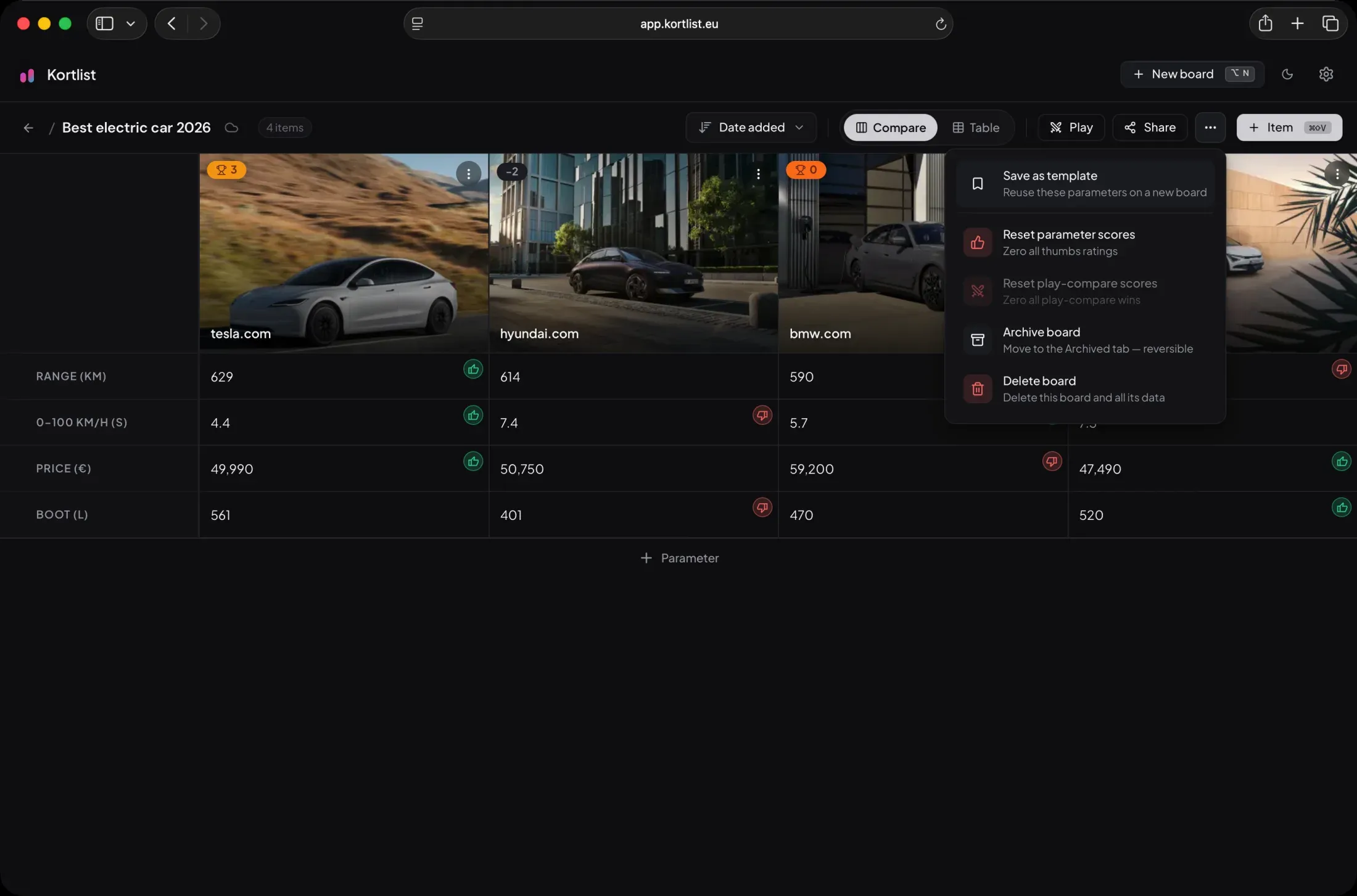
Save as template captures the parameter shape of the current board — names, types, order — and tucks it into your templates. The items themselves stay where they are; templates are about the columns, not the cars. Next time you hit New board, your saved template sits there ready to spin up an identical board for next year’s shortlist, a friend’s car hunt, or a fresh round of research on the same category.
Managing what you’ve saved
Templates live in Settings → Templates, alongside the Account tab. Everything you’ve saved is listed there with a summary, and the New template button up top lets you build one from scratch without needing an existing board to capture.
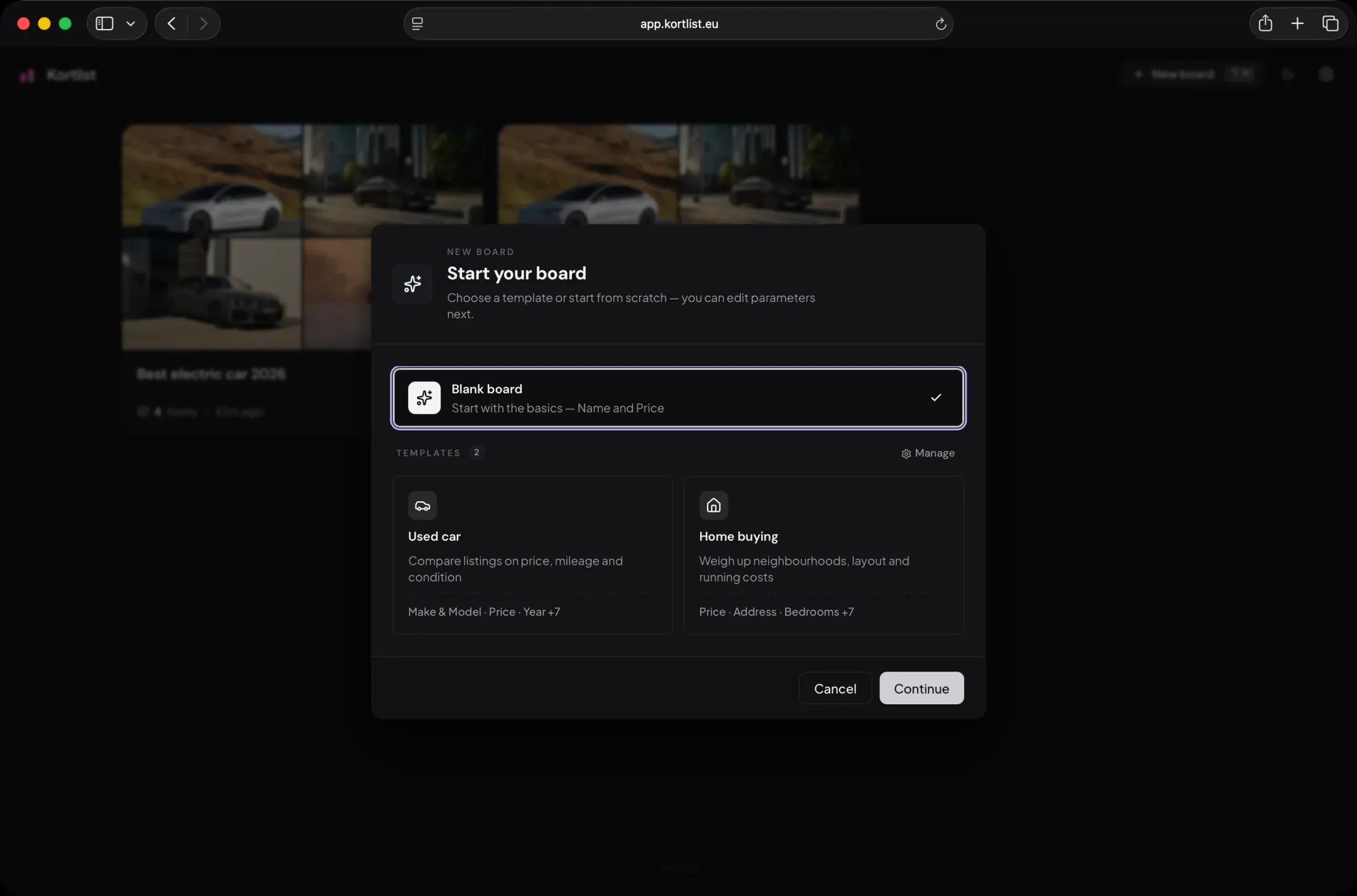
From here you can rename a template, tweak its parameters, or remove ones you don’t reach for any more. The same Manage link sits in the New board dialog too — if you spot a template that needs cleaning up the moment you go to use it, you don’t have to leave the flow.
Why this matters
Two reasons.
Less retyping. If you compare the same kind of thing more than once a year — flats, cars, gear, tools, anything that comes up in seasons — the parameters don’t change much between rounds. A template turns “I’ll just rebuild it again” into a single click.
Better starting points for new categories. A blank board makes you think about which columns matter before you’ve seen a single product. A template — even a generic one — gets you to a populated board faster, where you can react to what’s actually on the page in front of you instead of guessing at the abstract.
If there’s a comparison you’ll be running more than once, head to app.kortlist.eu, get the columns right on a board you like, and hit Save as template. The next round of research starts a step ahead.